

Docs/ HydraAI
Plans and builds
Get a plan
Switch to Plan mode and describe what you want. HydraAI looks at your site and replies with an Implementation Plan: the goal and a list of tasks. Nothing on your site changes while it plans.
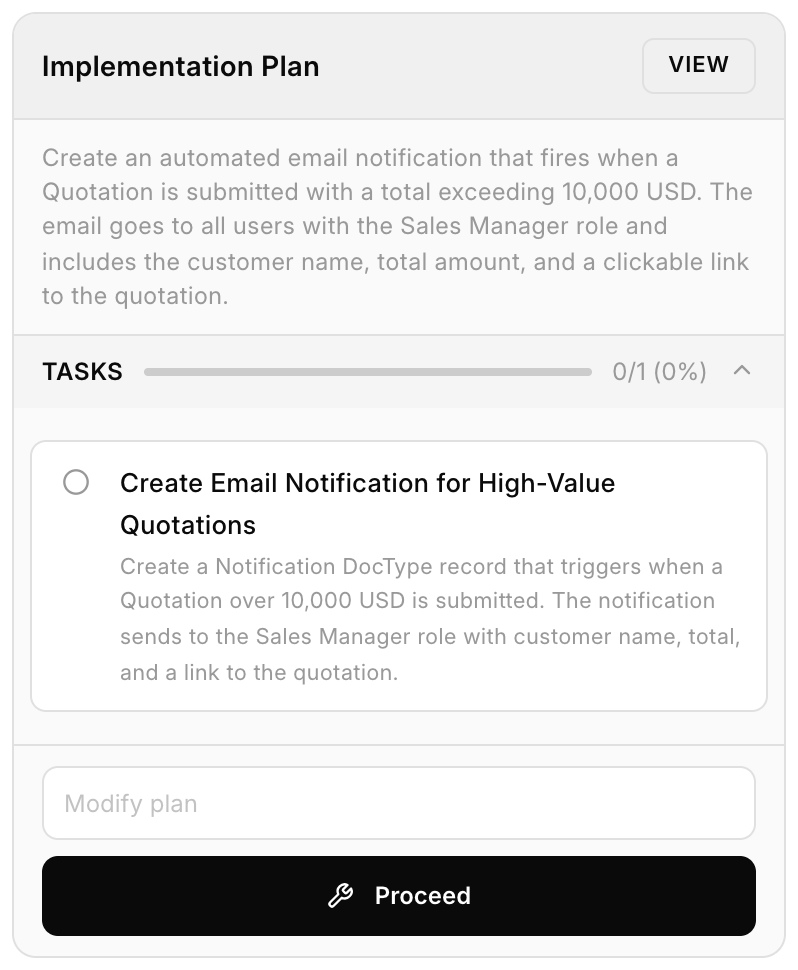
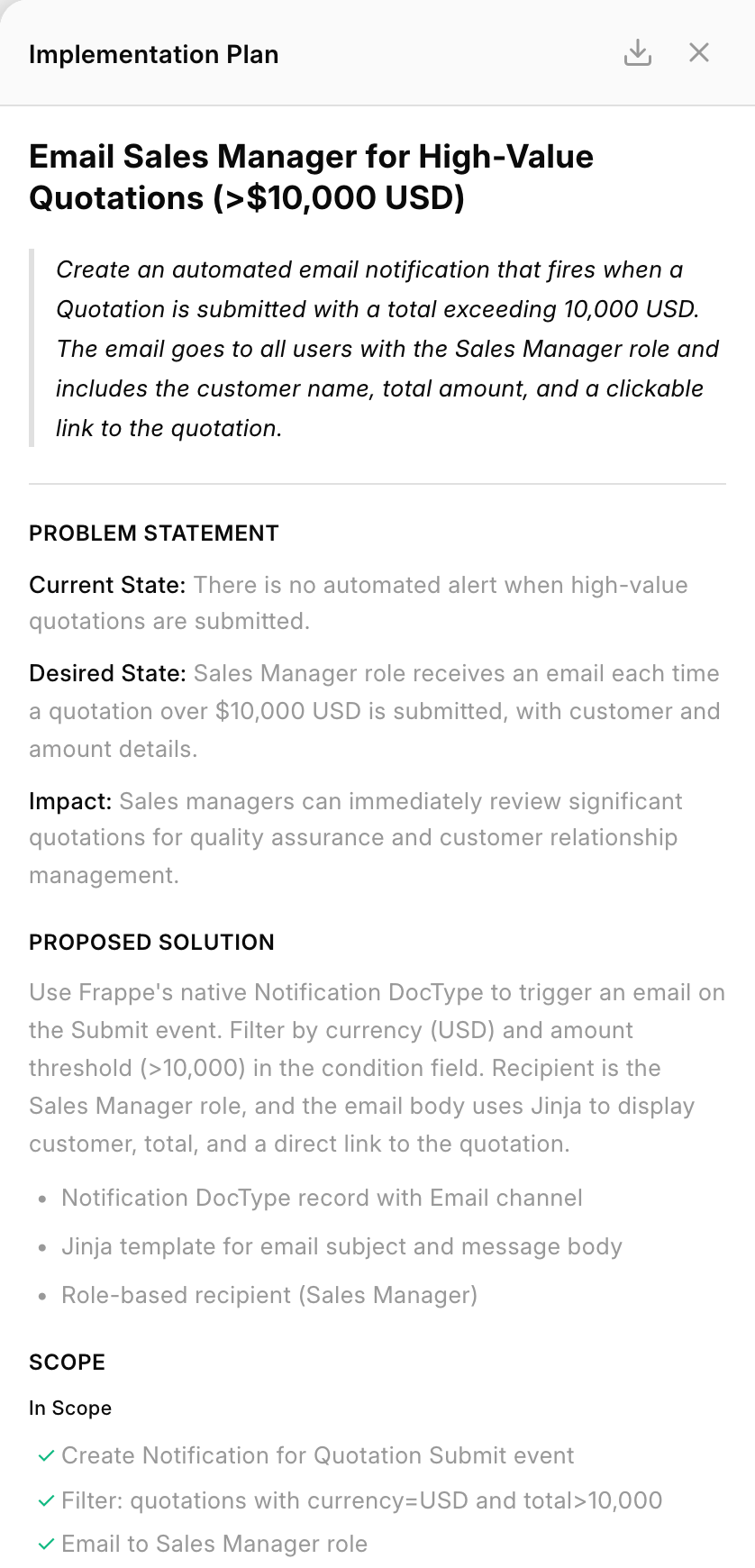
Open the full plan to read the details or download it. If something's wrong, say what to change and HydraAI redrafts the plan. When it looks right, press Proceed.
Build it
HydraAI works through the tasks and ticks each one off. If a task fails, it tells you, and you can retry it. If the build stops part way, open the chat and continue from where it left off.
Check what changed
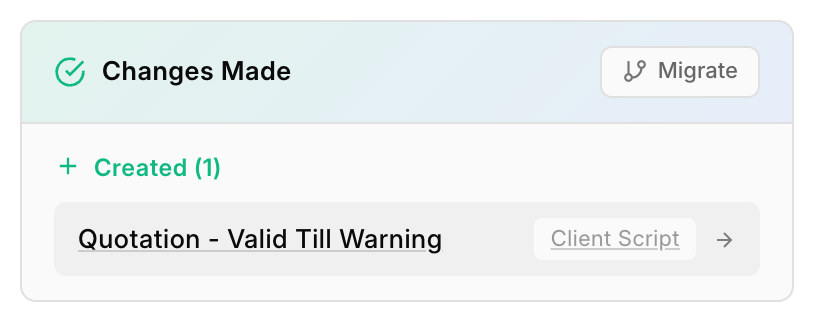
After any change, a Changes Made card lists everything HydraAI created or updated, with links. Open them and try the change yourself before you move it anywhere.
Send it to production
If Custom Migrator is on the same site, the Changes Made card has a Migrate button.
- Click Migrate and pick the changes you want to ship.
- HydraAI drafts a commit message from your changes.
- Custom Migrator opens with those items selected. Review them there, push, and open the pull request.
- Merge it, and Espresso deploys it. See Export and push.