

Docs/ HydraAI
Using HydraAI
Open the panel
Click the ✦ tab on the right edge of any Desk page, or press Ctrl + Alt + H. The panel opens on the right. Drag its edge to make it wider, or switch to full screen when you want room to read.
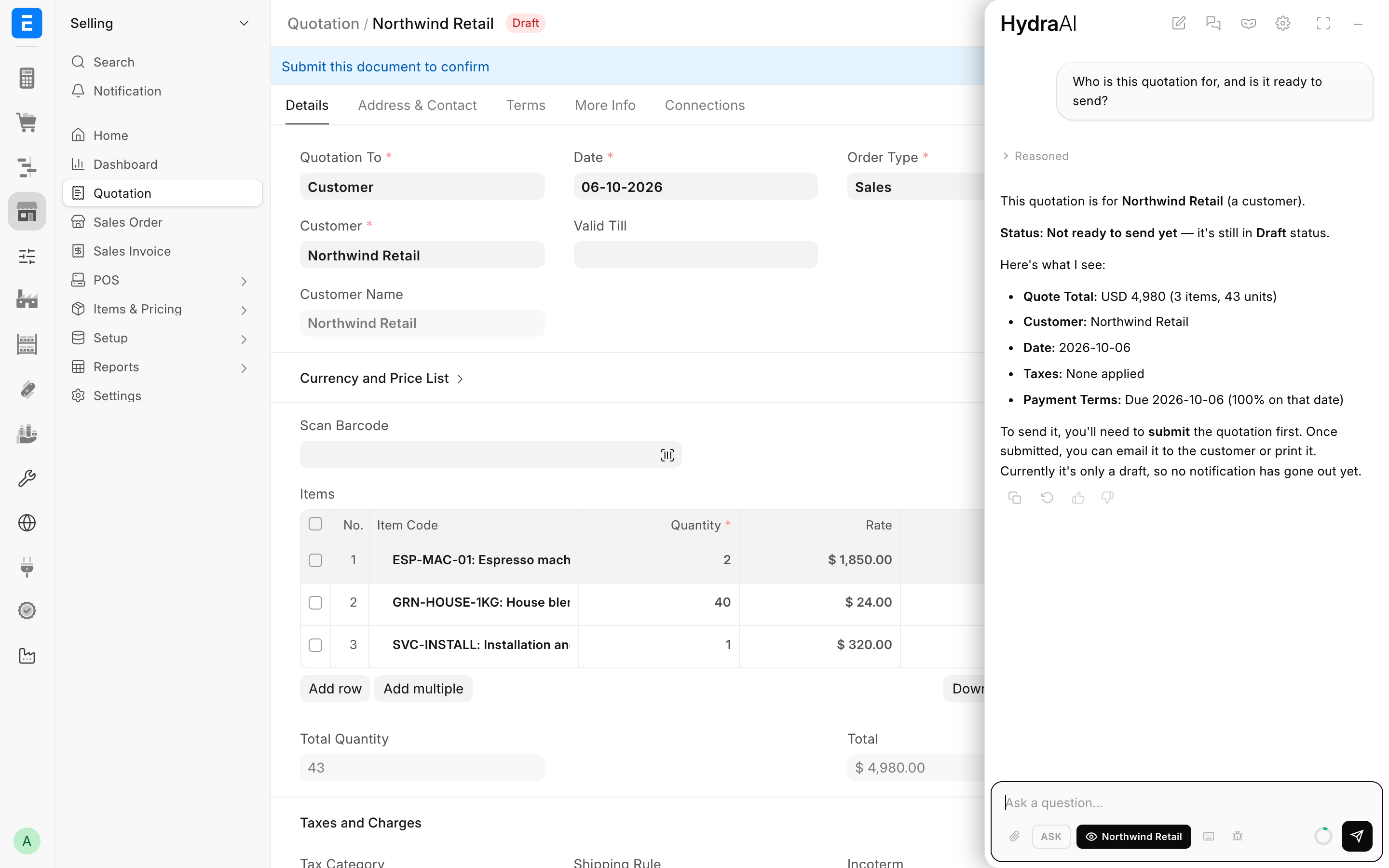
Along the top, from left to right:
- New chat
- Past chats: search and reopen earlier chats.
- Incognito: a chat that isn't saved. See Chats and history.
- Settings: opens HydraAI Client Settings, for admins only.
- Full screen, with your chats listed down the side.
- Minimize
Under the message box:
- Attach file
- Mode
- Page toggle: the eye icon labelled with the page you're on.
- Keyboard shortcuts
- Feedback
- The ring next to Send: how full this chat's memory is, and your credits.
A new chat suggests a few things to try. Click one to send it.
Pick a mode
Click the mode button (it shows FAST by default) or press Ctrl + Alt + M to cycle through them.
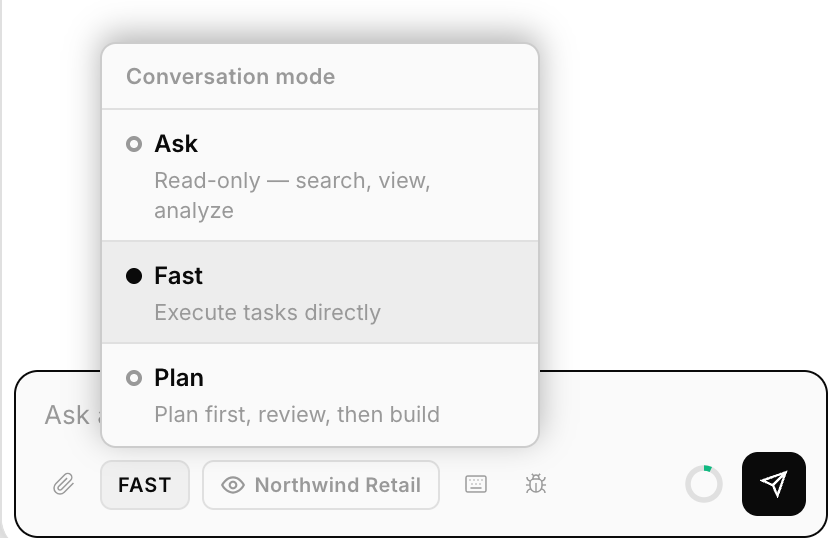
| Mode | What it does | Good for | Not for |
|---|---|---|---|
| Ask | Searches, reads and analyses. Write actions are blocked. | "Which fields does Sales Invoice have?", "Why is this report empty?" | Making changes |
| Fast | Acts straight away, no plan step | A field, a rule, a small report change | Anything that deletes, or touches many things at once |
| Plan | Writes a plan you can edit. Nothing is built until you press Proceed. | New modules, multi-step workflows, anything you want to review first | Quick one-liners |
Fast is the default. If you're new to HydraAI, start with Plan for anything beyond a single field. See Plans and builds.
Share the page you're on
The eye button under the message box is the page toggle. It's labelled with what you're looking at: the record's title on a form, such as "Northwind Retail", or the DocType or report name on a list or report. It's off every time a page loads. Turn it on when your question is about what's on screen.
When it's on, HydraAI receives:
- On a form: the DocType, the record name and up to 40 filled-in field values. For child tables, only the number of rows is sent.
- On a list: the active filters and the names of any rows you've ticked.
- On a report: the report name.
Password fields are never sent. Other fields are sent as they appear, including amounts, bank details or salaries if they're on the form. Leave the toggle off on pages like that unless HydraAI needs them.
TIP
"Add a field after Valid Till on this form", sent with the toggle on from a Quotation, works better than describing the form from memory three screens away.
Attach files
Click Attach file, drag files onto the panel, or paste an image.
- Up to 5 files per message, 10 MB each.
- Accepted: CSV, Excel, TSV, PDF, Word, text, Markdown, JSON, and PNG, JPG, GIF or WebP images.
- Images are seen as images. PDFs, Word files and spreadsheets are read as text, so a PDF's layout isn't seen, only its words.
- Paste a link to an image, PDF or JSON file and it's fetched and attached for you.
Attachments are saved as private files on your site.
While it works
A status line shows what it's doing ("Thinking…", "Reading docs…"). The steps it takes fold into one line, such as "Inspected Quotation, created Custom Field +1 more". Click the line to see each step.
- Press Stop to stop it. Anything it already wrote stays on screen, and it remembers that part in your next message.
- If the record or DocType you're viewing changes, the page reloads itself so you see the result.
- Under each reply, you can Copy it, Regenerate it, or rate it 👍/👎.
Credits
HydraAI runs on credits. Roughly, from real usage:
| What you do | Typical cost |
|---|---|
| Ask a question | 1 credit |
| A small change | 2 credits |
| A build: a workflow, report or script | 10 credits |
| A big plan and build | 20 credits |
Click the ring next to Send to see what's left. HydraAI pauses at your limit, with no overage. See Credits and usage.
Keyboard shortcuts
On a Mac you can press ⌘ instead of Ctrl and ⌥ instead of Alt.
| Keys | Does |
|---|---|
| Ctrl + Alt + H | Open or close the panel |
| Ctrl + Alt + N | New chat |
| Ctrl + Alt + M | Next mode (Ask → Fast → Plan) |
| Ctrl + Alt + F | Full screen |
| Ctrl + / | Show all shortcuts |
| Enter / Shift + Enter | Send / new line |
| Esc | Close the panel |